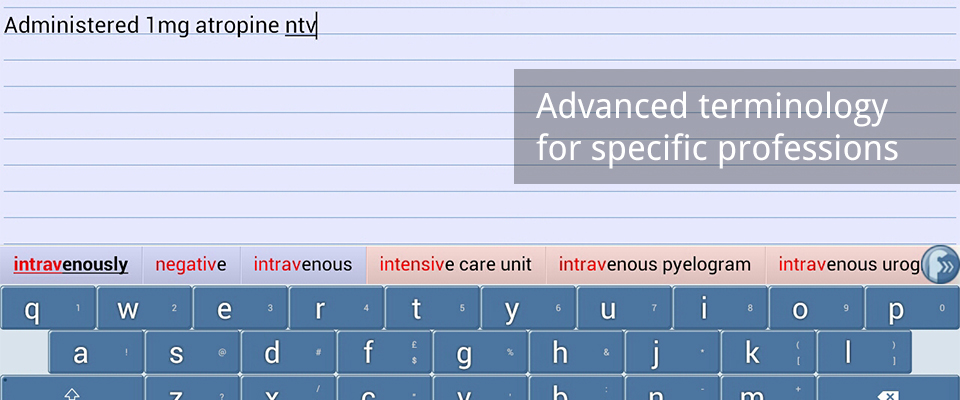
Installation is simple.
Either install the app from the Google Play store, or download the APK directly. Follow the in-app instructions to download your language pack, and you're good to go.
With the Flexpansion keyboard enabled, your shorthand typing will be interpreted and transformed into full English text. See below for a few pointers.
Predictions
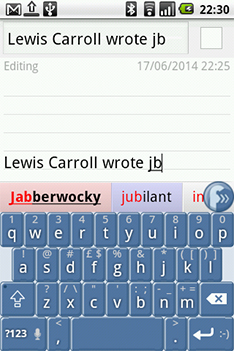
Start typing, and you'll see the suggestions appear in the bar above the keyboard. Coloured backgrounds indicate enhanced functionality:
- Red indicates custom abbreviations. Long-press to delete them.
- Blue indicates already used words. Long-press to tell Flexpansion to forget usage.
You can access the Flexpansion menu by tapping the icon on the right of the bar.
Shortcuts
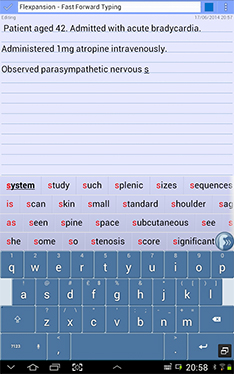
Flexpansion features a wide array of highly intuitive shortcuts to speed up your typing even further. These include:
swipe left across the keyboard to undo
Swipe down to disable prediction, and up to re-enable
Swipe up again to see the full suggestions grid
You can also long-press on any key to see a wide range of secondary characters. Speech recognition is also offered on compatible devices - simply press the '?123' button to activate this feature.
Further settings
To enable you to tailor your Flexpansion experience even further, a wide range of advanced settings can be accessed at any time. Simply tap the Flexpansion menu button, located on the right of the suggestions bar, for options to switch languages, keyboard layouts, haptic feedback, and other useful features.